Connecting two external monitors to your laptop transforms your workspace into a powerful productivity hub. Whether you’re working with spreadsheets, video editing, or managing multiple applications simultaneously, a dual monitor setup can increase your efficiency by up to 42% according to 2026 workplace studies. This comprehensive guide covers all methods to connect two monitors to your laptop, including solutions for single HDMI port limitations, USB-C connections, and docking station configurations compatible with Windows 10, Windows 11, and various laptop brands including Lenovo, Dell, and HP.
Understanding Your Laptop’s Display Capabilities
Before attempting to connect two monitors to your laptop, you need to verify your device’s hardware capabilities. Most modern laptops manufactured in 2024-2026 support at least one external display, but dual monitor support depends on your graphics card, available ports, and system specifications. Check your laptop’s graphics processing unit specifications through Device Manager in Windows or your manufacturer’s documentation to confirm multi-display support.
Your laptop’s ability to run two external monitors simultaneously depends on several factors including GPU memory, processor generation, and port configurations. Business-class laptops like Lenovo ThinkPad, Dell Latitude, and HP EliteBook series typically include robust dual monitor support, while budget consumer models may have limitations. In 2026, approximately 78% of laptops sold in the United States support dual external displays through various connection methods.
Available Ports and Connection Options
Identifying your laptop’s available video output ports is the critical first step in establishing a dual monitor configuration. Modern laptops typically feature combinations of HDMI, USB-C with DisplayPort Alt Mode, Thunderbolt 3/4, Mini DisplayPort, or legacy VGA ports. Each port type supports different capabilities including maximum resolution, refresh rates, and daisy-chaining possibilities for multiple displays.
HDMI Ports and Limitations
Most laptops include at least one HDMI port which supports full HD (1920×1080) or 4K resolution depending on the HDMI version. HDMI 2.0 ports, common in 2022-2024 laptops, support 4K at 60Hz, while newer HDMI 2.1 ports in 2025-2026 models support 4K at 120Hz or 8K at 60Hz. When your laptop has only one HDMI port, you’ll need to utilize additional connection methods or adapters to achieve a dual monitor setup without compromising display quality.
USB-C and Thunderbolt Connections
USB-C ports with DisplayPort Alt Mode or Thunderbolt support have become the standard for premium laptops in 2026. These versatile ports can simultaneously transmit video, data, and power, making them ideal for connecting external monitors. Thunderbolt 4 ports support up to two 4K displays at 60Hz or one 8K display, while standard USB-C with DisplayPort Alt Mode typically supports one 4K monitor. Many 2026 laptop models feature multiple USB-C ports specifically to facilitate easy dual monitor configurations.
Method 1: Connecting Two Monitors with Multiple Ports
The most straightforward approach to connect two monitors to your laptop involves using two separate video output ports. This method provides the best performance and image quality since each monitor receives a dedicated signal. If your laptop has two different port types such as HDMI and USB-C, you can connect one monitor to each port using appropriate cables.
To set up this configuration, first ensure both monitors are powered off. Connect your first monitor to the HDMI port using an HDMI cable, then connect the second monitor to your USB-C or Thunderbolt port using a USB-C to HDMI, USB-C to DisplayPort, or direct USB-C cable depending on your monitor’s input options. Power on both monitors, then boot your laptop. Windows 10 and Windows 11 should automatically detect both displays and extend your desktop across all three screens including your laptop display.
Method 2: Using an HDMI Splitter for Dual Monitors
When your laptop has only one HDMI port, an HDMI splitter seems like a logical solution, but there’s an important distinction to understand. A standard HDMI splitter duplicates the same image to multiple displays, which means both monitors will show identical content rather than extending your workspace. For true extended desktop functionality with two monitors connected via one HDMI port, you need an HDMI MST hub or an active adapter that supports independent displays.
An MST (Multi-Stream Transport) hub connects to your laptop’s single HDMI or DisplayPort and splits the signal into multiple independent streams. These devices, widely available in 2026 for $45-$120, enable you to extend your desktop across two monitors from one port. After connecting the MST hub to your laptop and both monitors to the hub, access Windows Display Settings to configure each monitor independently with different resolutions, orientations, and display arrangements.
Method 3: Connecting Two Monitors with a Docking Station
A docking station provides the most elegant solution for connecting two monitors to your laptop, especially if you frequently dock and undock your device. Modern USB-C and Thunderbolt docking stations feature multiple video outputs including HDMI, DisplayPort, and USB-C ports that support dual 4K monitors simultaneously. Premium docking stations in 2026 range from $150 to $400 and also provide additional USB ports, ethernet connectivity, and laptop charging through a single cable connection.
To set up a dual monitor configuration with a docking station, connect your laptop to the dock using the provided Thunderbolt or USB-C cable. Then connect each monitor to separate video ports on the docking station using HDMI or DisplayPort cables. Most modern docking stations automatically configure displays when connected, but you may need to adjust settings in Windows Display Settings. Popular docking station brands for reliable dual monitor support include CalDigit TS4, Plugable UD-ULTC4K, Dell WD19TB, and Lenovo ThinkPad Universal USB-C Dock.
Configuring Display Settings in Windows 11
After physically connecting two monitors to your Windows 11 laptop, you need to configure display settings to optimize your workspace. Right-click on your desktop and select Display Settings, or press Windows key + P to access quick projection options. Windows 11 will display all connected monitors with numbered rectangles representing their physical arrangement.
In the Display Settings menu, you can configure each monitor’s resolution, orientation, and scaling individually. The default Extend option spreads your desktop across all displays, allowing you to drag windows between screens. Select each monitor by clicking its number and adjust settings including refresh rate, color profile, and HDR settings if supported. To arrange monitors according to their physical placement on your desk, drag the numbered rectangles in the display arrangement area so your mouse cursor flows naturally between screens.
Setting Primary and Secondary Displays
Designating your primary display determines where Windows opens new applications and displays the taskbar by default. In Windows 11 Display Settings, select the monitor you want as primary and scroll down to check the box labeled Make this my main display. Your laptop’s built-in screen, Monitor 1, or either external monitor can serve as the primary display based on your workflow preferences.
Adjusting Scaling and Resolution
When connecting monitors with different resolutions or sizes, Windows 11’s scaling feature ensures text and icons remain readable across all displays. Each monitor can have independent scaling set between 100% and 300%, with 150% recommended for 1440p monitors and 200% for 4K displays. Setting appropriate scaling prevents tiny text on high-resolution monitors and maintains consistent visual appearance across your dual monitor setup.
Configuring Display Settings in Windows 10
Windows 10 offers similar but slightly different display configuration options for dual monitor setups. Access Display Settings by right-clicking the desktop or navigating to Settings, System, Display. Windows 10 detects connected monitors and displays them as numbered rectangles in the display arrangement section.
Click Identify to display numbers on each physical monitor corresponding to the display settings interface. Select each monitor to configure its resolution, orientation, and multiple displays mode. The Multiple displays dropdown menu offers options including Duplicate, Extend, or show on only one display. Choose Extend these displays to create a continuous workspace across both external monitors and your laptop screen. Windows 10 automatically saves display configurations, so your settings persist after disconnecting and reconnecting monitors.
Using DisplayPort Daisy Chaining
DisplayPort 1.2 and later versions support Multi-Stream Transport daisy chaining, allowing you to connect multiple monitors in series from a single DisplayPort output. This elegant solution requires monitors with DisplayPort In and DisplayPort Out ports, which are becoming more common in business-oriented displays manufactured in 2025-2026.
To implement DisplayPort daisy chaining, connect your laptop’s DisplayPort or USB-C port to the first monitor’s DisplayPort In port. Then connect the first monitor’s DisplayPort Out to the second monitor’s DisplayPort In using another DisplayPort cable. Enable MST mode in each monitor’s on-screen display menu. This method supports up to four 1080p monitors, two 1440p monitors, or two 4K monitors at 30Hz from a single laptop port, depending on your DisplayPort version and GPU capabilities.
Solutions for Laptops with One HDMI Port Only
If your laptop features only one HDMI port without additional video outputs, you still have multiple options to connect two external monitors. USB-based display adapters convert USB 3.0 or USB-C data ports into additional video outputs, though they use your CPU for graphics processing rather than your dedicated GPU, which may impact performance.
USB 3.0 to HDMI adapters, available for $35-$80 in 2026, enable you to add a second monitor through a standard USB port. Install the manufacturer’s DisplayLink drivers before connecting the adapter for best results. Connect your first monitor directly to your laptop’s HDMI port and the second monitor through the USB to HDMI adapter. This configuration works well for productivity applications like office software and web browsing, though it’s not recommended for gaming or intensive graphics work due to slightly higher latency and reduced performance compared to direct GPU connections.
USB-C to Dual HDMI Adapters
Modern laptops with USB-C ports offer better expansion options through USB-C to dual HDMI adapters. These compact devices, priced between $50-$130, connect to a single USB-C port and provide two HDMI outputs supporting independent 4K displays. Ensure your laptop’s USB-C port supports DisplayPort Alt Mode, which is standard on most 2024-2026 laptops. These adapters eliminate the need for docking stations while providing reliable dual monitor connectivity.
Wireless Display Options
Wireless display technology using Miracast or proprietary wireless HDMI systems offers cable-free connections for secondary monitors. While convenient, wireless displays typically introduce 20-50ms latency and may experience occasional compression artifacts, making them less suitable for precision work. Wireless display adapters connect to your monitor’s HDMI input and receive signals from your laptop over Wi-Fi Direct, supporting resolutions up to 4K at 30Hz in optimal conditions.
Brand-Specific Dual Monitor Setup: Lenovo Laptops
Lenovo laptops, particularly ThinkPad and IdeaPad series, offer excellent dual monitor support through diverse port configurations. Most Lenovo business laptops manufactured in 2024-2026 include USB-C with Thunderbolt 4, HDMI 2.0, and sometimes a Mini DisplayPort, enabling straightforward dual monitor connections without adapters.
For Lenovo ThinkPad models, the recommended approach uses the Thunderbolt 4 port for one monitor and HDMI for the second. Lenovo’s proprietary USB-C docking stations, including the ThinkPad Universal USB-C Dock Gen 2 and ThinkPad Thunderbolt 4 Dock, support up to four external displays, though using two provides optimal performance. Install Lenovo Vantage software to ensure graphics drivers are updated, as outdated drivers commonly cause dual monitor detection issues.
Achieving Three-Screen Setup: Laptop Plus Two Monitors
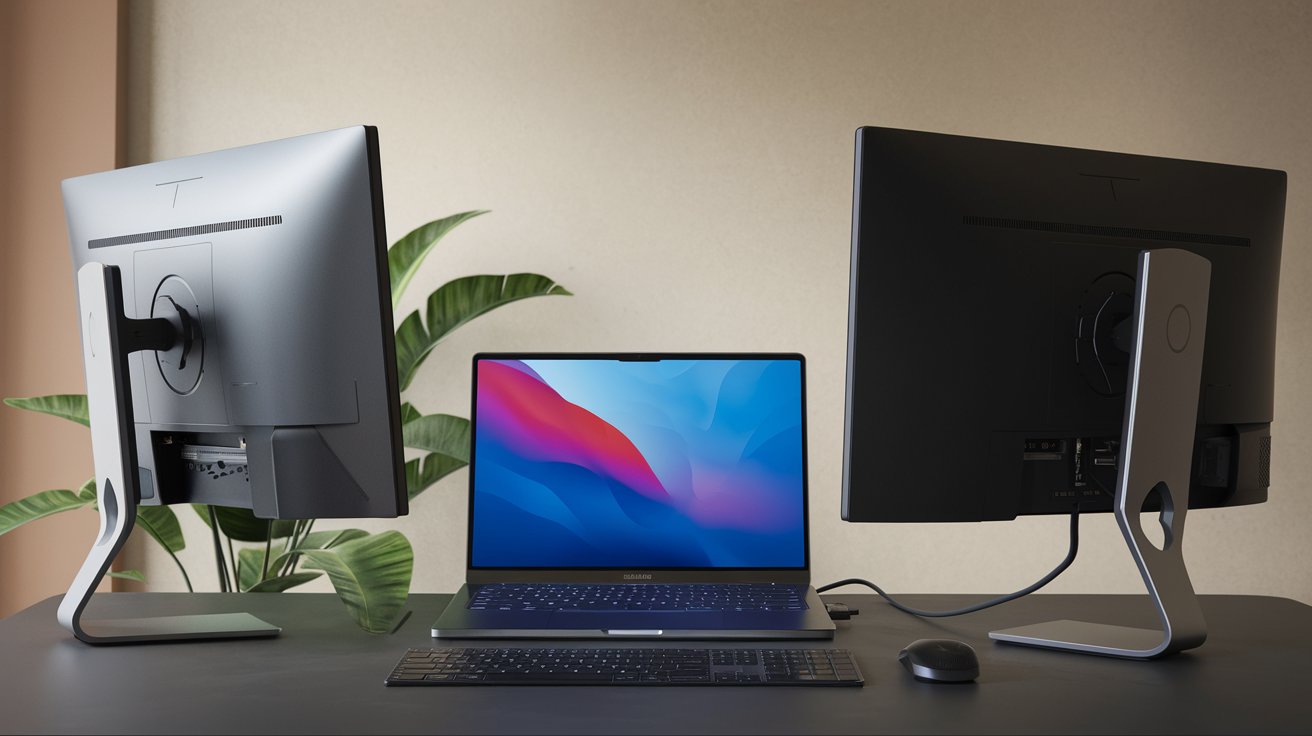
Creating a three-screen workspace using your laptop display plus two external monitors maximizes productivity for professionals working with multiple applications simultaneously. This configuration requires your laptop to support at least two external displays, which most business-class laptops and gaming laptops from 2023-2026 readily handle.
Connect both external monitors using your laptop’s available ports as described in previous methods, then configure Windows to extend displays across all three screens. In Display Settings, arrange the three displays according to their physical positioning on your desk. Many users prefer positioning the laptop screen centrally with external monitors flanking either side, though you can arrange displays in any configuration that suits your workflow. Consider using your laptop’s built-in display for communication apps like email and messaging while dedicating external monitors to primary work applications.
Troubleshooting Common Dual Monitor Issues
Even with correct physical connections, dual monitor setups sometimes encounter detection or display problems. Windows may fail to detect one or both monitors, displays might show incorrect resolutions, or you may experience flickering or black screens. Systematic troubleshooting resolves most issues quickly.
Start by verifying all cables are securely connected and monitors are powered on and set to the correct input source. Press Windows key + P and select Extend to force Windows to recognize external displays. If monitors still aren’t detected, open Device Manager, expand Display Adapters, right-click your graphics card, and select Update Driver. Outdated or corrupted graphics drivers cause most dual monitor detection failures in Windows 10 and 11.
Resolving Black Screen on Second Monitor
A black screen on your second monitor while the first displays normally typically indicates a cable problem, incorrect input selection, or insufficient bandwidth. Try swapping monitor connections to isolate whether the issue relates to a specific port or monitor. Ensure you’re using high-quality cables rated for your desired resolution; cheap HDMI cables often fail to support 4K at 60Hz. If using a docking station or hub, verify it supports the total bandwidth required for both monitors at your desired resolutions simultaneously.
Fixing Monitor Not Detected Error
When Windows displays monitor not detected errors, force detection by opening Display Settings and clicking Detect under the Multiple Displays section. If detection fails, restart your laptop with monitors connected, as Windows sometimes only fully initializes external displays during boot. Check your graphics card’s control panel like NVIDIA Control Panel or AMD Radeon Settings to verify display configuration matches your physical setup. Disable and re-enable the graphics driver in Device Manager as a last resort before reinstalling drivers.
Optimizing Performance with Dual Monitors
Running two external monitors increases GPU workload and power consumption, potentially impacting laptop performance and battery life. On battery power, dual 4K monitors can reduce runtime by 40-60% compared to using the laptop display alone. When mobile productivity matters, consider lowering external monitor resolutions to 1080p or disconnecting one monitor to extend battery life.
For optimal performance with dual monitors on Windows 11, ensure your power plan is set to High Performance or Ultimate Performance when plugged in. Disable unnecessary visual effects through System Properties, Advanced System Settings, Performance Settings. Close background applications and browser tabs you’re not actively using, as each open application consumes graphics memory. If experiencing lag or stuttering, especially when moving windows between displays, update to the latest graphics drivers and consider upgrading laptop RAM to 16GB or higher, as dual 4K displays benefit from additional system memory.
Best Cables and Adapters for Dual Monitor Setup
Selecting appropriate cables and adapters significantly impacts your dual monitor experience. In 2026, cable quality matters more than ever with high-resolution 4K and emerging 5K displays demanding substantial bandwidth. Always choose cables certified for your required specifications rather than generic alternatives.
For HDMI connections, use Premium High Speed HDMI cables certified for 18Gbps bandwidth to support 4K at 60Hz reliably. If either monitor supports refresh rates above 60Hz, invest in Ultra High Speed HDMI cables supporting 48Gbps bandwidth. DisplayPort cables should be certified for DisplayPort 1.4 or 2.0 specifications, with 1.4 supporting 4K at 120Hz and 2.0 supporting 4K at 240Hz or 8K at 60Hz. USB-C cables require USB-IF certification with explicit DisplayPort Alt Mode support, typically labeled as USB-C with DP Alt Mode or Thunderbolt 3/4.
Related video about how to connect 2 monitors to laptop
This video complements the article information with a practical visual demonstration.
Questions & Answers
Can I connect two monitors to a laptop with only one HDMI port?
Yes, you can connect two monitors to a laptop with one HDMI port using several methods. The most effective approach uses a USB-C to dual HDMI adapter if your laptop has a USB-C port with DisplayPort Alt Mode support. Alternatively, use an MST hub that splits one DisplayPort or HDMI signal into two independent displays, or connect one monitor via HDMI and add a second through a USB 3.0 to HDMI adapter. These solutions enable true extended desktop functionality across both monitors, though MST hubs and USB adapters provide better performance than basic HDMI splitters which only duplicate the same image.
Do I need a docking station to connect two monitors to my laptop?
A docking station is not required to connect two monitors to your laptop if your device has multiple video output ports. Laptops with HDMI plus USB-C, Thunderbolt, or DisplayPort can connect two monitors directly using appropriate cables without additional hardware. However, docking stations provide significant convenience for users who frequently connect and disconnect their laptops, consolidating all connections into a single cable. Docking stations also add extra USB ports, ethernet, and audio connections while charging your laptop simultaneously. They’re particularly valuable for laptops with limited ports or for creating permanent desk setups.
How do I set up dual monitors on Windows 11?
Setting up dual monitors on Windows 11 requires first physically connecting both monitors to your laptop using available ports like HDMI and USB-C. After connections are secure and monitors powered on, press Windows key + P and select Extend to spread your desktop across all displays. Open Settings, then System, Display to configure each monitor individually. In Display Settings, you can arrange monitors by dragging their numbered rectangles to match physical positioning, set different resolutions and scaling for each display, choose your primary monitor, and adjust orientation. Windows 11 automatically saves these configurations for future use.
What cables do I need to connect two monitors to a laptop?
The cables needed depend on your laptop’s available ports and your monitors’ input options. Most commonly, you’ll need an HDMI cable for one monitor and either a USB-C to HDMI cable, USB-C to DisplayPort cable, or direct DisplayPort cable for the second monitor. Ensure HDMI cables are High Speed HDMI certified for 4K at 60Hz support. If your laptop only has USB-C ports, use USB-C cables with DisplayPort Alt Mode support or USB-C to HDMI/DisplayPort adapters. When using a docking station, you’ll need HDMI or DisplayPort cables from the dock to each monitor. Always verify cable specifications match your desired resolution and refresh rate requirements for optimal performance.
Will using two external monitors drain my laptop battery faster?
Yes, connecting two external monitors significantly increases power consumption and reduces battery life by 40-60% compared to using only your laptop’s built-in display. Running dual monitors requires your GPU to render additional display outputs at potentially higher resolutions, consuming substantially more power. The exact impact depends on monitor resolutions, refresh rates, and your laptop’s hardware efficiency. To maximize battery life when using dual monitors, keep your laptop plugged into AC power whenever possible. When operating on battery, consider reducing monitor resolutions to 1080p, lowering brightness levels, or disconnecting one monitor during periods requiring extended mobile runtime.
Can my laptop’s graphics card support two 4K monitors?
Whether your laptop supports two 4K monitors depends on your specific graphics card model and available ports. Most dedicated GPUs from NVIDIA and AMD manufactured in 2022 or later support dual 4K displays at 60Hz, including mobile versions of RTX 3050 and higher, or AMD RX 6600M and above. Integrated graphics like Intel Iris Xe in 11th-generation processors and newer also support dual 4K outputs. Check your laptop specifications or GPU documentation to verify multi-display capabilities. Connection method matters too; Thunderbolt 4 ports easily support two 4K monitors, while older HDMI 2.0 ports may require lowering one monitor to 1440p or 30Hz refresh rate for stable operation.
| Connection Method | Best For | Cost Range | Performance |
|---|---|---|---|
| Direct Dual Ports | Laptops with HDMI + USB-C/DisplayPort | $15-$40 (cables only) | Excellent – Native GPU support |
| USB-C to Dual HDMI Adapter | Single USB-C port laptops | $50-$130 | Very Good – 4K at 60Hz support |
| Docking Station | Permanent desk setups, frequent docking | $150-$400 | Excellent – Plus additional ports |
| USB 3.0 to HDMI Adapter | Laptops with one HDMI only | $35-$80 | Good – Slight latency, not for gaming |
| DisplayPort Daisy Chain | Compatible monitors with DP 1.2+ | $20-$50 (cables only) | Excellent – Clean single cable to laptop |
| MST Hub | Single port expansion to multiple displays | $45-$120 | Very Good – Supports independent displays |