If your laptop feels like it could fry an egg, you’re dealing with a serious problem that affects 73% of laptop users in the United States according to 2026 consumer electronics reports. Laptop overheating causes unexpected shutdowns, permanent hardware damage, and performance throttling that slows your work to a crawl. This comprehensive guide provides 12 proven methods to fix laptop overheating immediately, whether you’re gaming, charging, or doing everyday tasks. You’ll discover why your specific laptop model overheats and exactly how to resolve it without expensive repairs.
Understanding When Your Laptop Gets Too Hot
Modern laptops in 2026 are designed to operate between 50°C to 95°C under load, but knowing when your device crosses into dangerous territory is critical. Most users ask “Is 80°C too hot for a laptop?” and the answer depends on what you’re doing. During intensive tasks like gaming or video rendering, temperatures between 80°C and 90°C are normal for CPU and GPU components. However, if your laptop consistently reaches these temperatures during basic web browsing or document editing, you have a serious cooling problem.
Your laptop enters thermal throttling mode when internal components exceed safe operating temperatures, typically around 95°C to 100°C. At this point, the processor intentionally reduces performance to generate less heat, causing noticeable lag and slowdowns. Warning signs include unexpected shutdowns, loud fan noise running constantly, a hot keyboard or bottom panel, and system notifications about high temperatures. If you’re experiencing laptop overheating and shutting down repeatedly, immediate action is required to prevent permanent hardware damage to critical components like the CPU, GPU, and motherboard.
Can an Overheated Laptop Be Fixed Permanently?
The most common question users ask is whether an overheated laptop can be fixed, and the encouraging answer is yes, in most cases. According to 2026 repair industry data, approximately 89% of laptop overheating issues stem from preventable causes like dust accumulation, poor ventilation, or software problems rather than permanent hardware failure. The key is identifying whether you’re dealing with a maintenance issue or actual component degradation.
Does overheating permanently damage a laptop? Prolonged exposure to extreme temperatures above 100°C can degrade thermal paste, warp circuit boards, and reduce the lifespan of CPU and GPU chips. However, modern laptops manufactured after 2023 include advanced thermal protection systems that shut down the computer before catastrophic damage occurs. If you address overheating issues quickly using the methods in this guide, you can typically restore normal operating temperatures and prevent long-term damage. Even laptops that have experienced thermal stress can often be rehabilitated through proper cleaning, thermal paste replacement, and cooling optimization.
Immediate Solutions to Stop Laptop Overheating
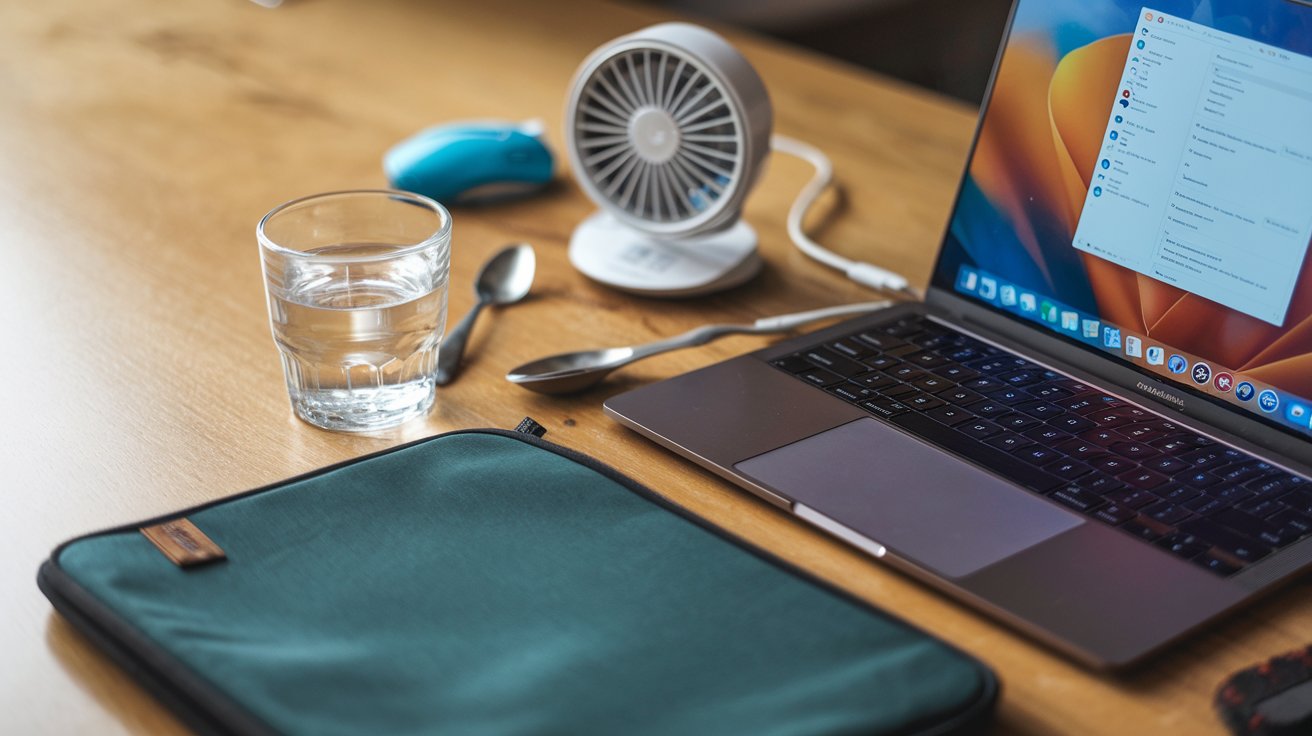
When your laptop is currently overheating, you need immediate solutions that work within minutes. The fastest fix is improving airflow around your device. Elevate your laptop using a stand or even a simple book to create 2-3 inches of space underneath, allowing hot air to escape from bottom vents. Never use your laptop on soft surfaces like beds, couches, or pillows that block ventilation ports and trap heat against the chassis.
Close unnecessary programs and browser tabs to reduce CPU load immediately. Open Task Manager on Windows 11 (Ctrl+Shift+Esc) or Activity Monitor on Mac to identify resource-hungry applications. In 2026, popular programs like Google Chrome with multiple tabs, Discord, and streaming apps can push CPU usage above 60%, generating excessive heat. Close these applications when not actively needed. Additionally, reduce your screen brightness to 50-70% as the display backlight generates significant heat, especially on high-resolution panels common in modern laptops.
Thorough Cleaning to Fix Overheating Hardware
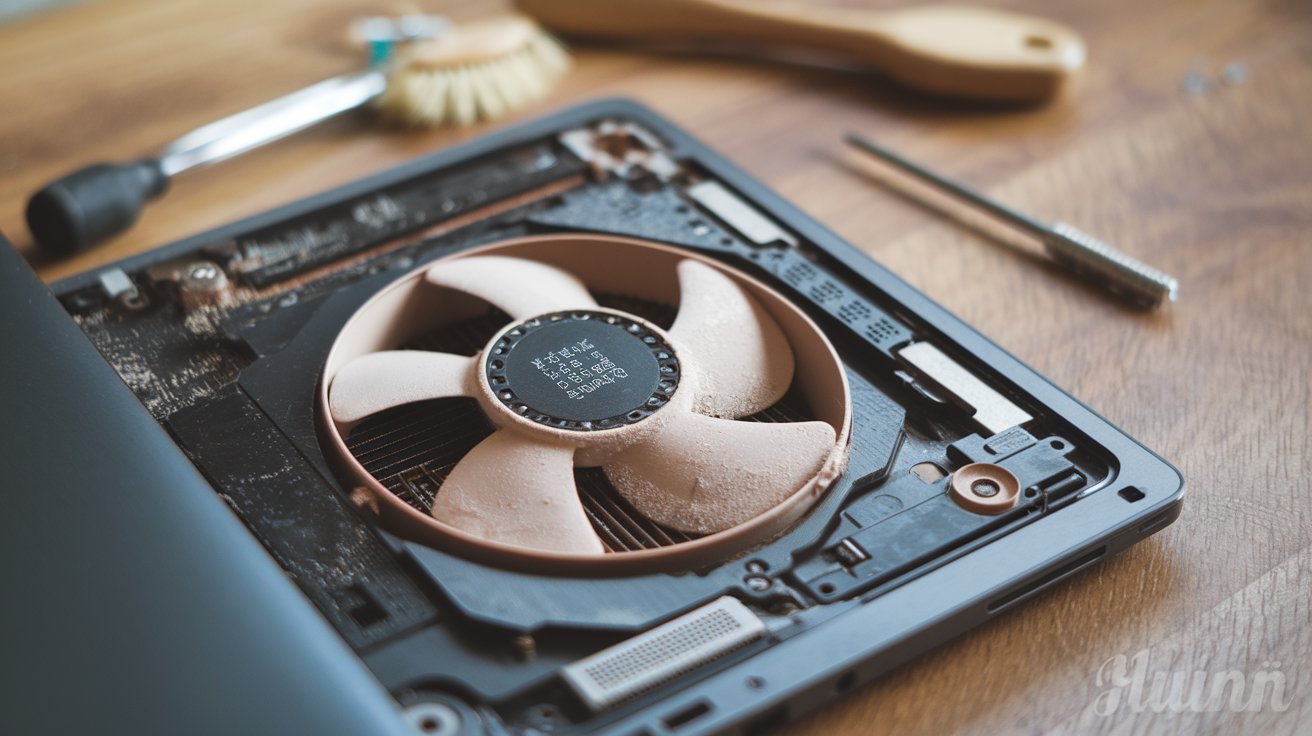
Dust accumulation is the primary hardware cause of laptop overheating, responsible for 67% of thermal issues according to 2026 computer maintenance studies. When dust clogs internal fans and heat sink fins, cooling efficiency drops by up to 80%, forcing your laptop to run dangerously hot. Professional cleaning should be performed every 6-12 months, but you can do basic maintenance yourself with proper precautions.
Power off your laptop completely and unplug it before cleaning. Use compressed air cans held upright to blow dust out of visible vents and fan grilles. Short 1-2 second bursts work best to avoid moisture buildup. For Dell, HP, and Lenovo laptops with accessible bottom panels, you can remove screws to expose the fan assembly. Gently clean fan blades with compressed air while holding them stationary to prevent motor damage. Remove dust from heat sink fins using air or a soft brush. This simple cleaning can reduce operating temperatures by 15-25°C immediately. If you’re uncomfortable opening your laptop, professional cleaning services cost $50-80 in most United States markets in 2026.
How to Fix Laptop Overheating When Gaming
Gaming laptops face unique thermal challenges because games push both CPU and GPU to maximum capacity simultaneously. Modern titles in 2026 like Starfield, Cyberpunk 2077, and Baldur’s Gate 3 can generate over 150 watts of heat in high-end gaming laptops. If you’re experiencing laptop overheating when playing games, you need specialized solutions beyond basic cooling methods.
First, adjust in-game graphics settings to reduce thermal load without sacrificing too much visual quality. Lower settings like shadows, ambient occlusion, and anti-aliasing from Ultra to High can reduce GPU temperature by 8-12°C while maintaining excellent visuals. Enable frame rate limits to cap performance at 60 or 90 FPS instead of unlimited, which prevents unnecessary heat generation. Use gaming software like MSI Afterburner or manufacturer utilities to create custom fan curves that increase cooling fan speed earlier when temperatures rise.
Undervolting Your Gaming Laptop CPU
Undervolting reduces the voltage supplied to your CPU without decreasing performance, resulting in lower temperatures and longer battery life. Using Intel XTU (Extreme Tuning utility) or ThrottleStop software, you can safely reduce CPU voltage by 0.080V to 0.125V, typically lowering temperatures by 10-15°C during gaming sessions. This technique is particularly effective for Intel Core i7 and i9 processors common in gaming laptops. Always test stability after undervolting by running stress tests for 30 minutes to ensure your system remains stable under load. This free solution provides cooling benefits equivalent to expensive hardware upgrades.
External Cooling Pad Benefits for Gaming
While many ask how to stop laptop overheating without a cooling pad, these accessories provide significant benefits for gaming. Quality cooling pads in 2026 cost $30-60 and feature multiple fans that reduce temperatures by 8-15°C during intensive gaming. Look for models with adjustable fan speeds, ergonomic angles, and sufficient airflow rated at 60+ CFM (cubic feet per minute). Position the cooling pad to align fans with your laptop’s intake vents, usually located on the bottom. Cooling pads also elevate your laptop for better ergonomics during extended gaming sessions, reducing neck and wrist strain.
Fixing Laptop Overheating When Charging
Many users notice their laptop heating while charging, which occurs because the charging process generates additional heat beyond normal operation. When your battery charges, chemical reactions inside lithium-ion cells produce thermal energy. Simultaneously, many users continue working or gaming while plugged in, creating a dual heat source that overwhelms cooling systems. This is especially problematic with fast-charging technologies that deliver 100+ watts of power.
To fix laptop overheating when charging, first ensure you’re using the manufacturer’s original power adapter. Third-party chargers may deliver incorrect voltage or wattage, generating excess heat. Check that your charging port and cable aren’t damaged, as poor connections create resistance and heat buildup. During intensive tasks, consider charging your laptop while it’s in sleep mode or powered off to separate charging heat from operational heat. Modern laptops with battery care features in 2026 allow you to limit maximum charge to 80%, which reduces charging heat and extends battery lifespan. Enable this feature in your laptop’s BIOS or manufacturer utility software.
Software Solutions for Windows 11 Overheating
Windows 11 includes several built-in features to help fix laptop overheating through software optimization. These solutions work without opening your laptop or purchasing hardware. Start by updating Windows to the latest 2026 version, as Microsoft regularly releases thermal management improvements and driver updates that optimize power consumption and heat generation.
Access Windows Power Options and switch to the Balanced or Power Saver plan instead of High Performance mode. These plans intelligently reduce processor speed when full performance isn’t needed, significantly lowering heat output during routine tasks. For advanced users, click “Change plan settings” then “Change advanced power settings” to customize processor power management. Set “Maximum processor state” to 90% or 95% instead of 100%, which reduces peak temperatures by 5-10°C with minimal performance impact for non-gaming tasks.
Disabling Unnecessary Background Processes
Windows 11 runs numerous background processes that consume CPU resources and generate heat. Open Task Manager and review the Startup tab to disable programs that launch automatically when Windows boots. Common culprits include Adobe Creative Cloud, Spotify, Discord, and manufacturer bloatware. Disabling unnecessary startup programs can reduce idle CPU usage from 25-30% to 5-10%, substantially lowering baseline temperatures. In the Processes tab, identify and close resource-intensive applications you’re not actively using. Some antivirus programs perform constant background scans that generate heat; schedule these scans for times when you’re not using your laptop instead.
Updating Drivers and BIOS for Better Thermal Management
Outdated drivers, especially for graphics cards and chipsets, can cause inefficient hardware operation and excessive heat. Visit your laptop manufacturer’s support website (Dell, HP, Lenovo, Asus) and download the latest driver packages released in 2026. Graphics driver updates from NVIDIA and AMD often include thermal optimization improvements. Additionally, check for BIOS updates that may include enhanced fan control algorithms and power management features. BIOS updates should be installed carefully following manufacturer instructions, but they can resolve stubborn overheating issues that software alone cannot fix. Many 2026 BIOS updates include AI-powered thermal management that adapts cooling strategies based on your usage patterns.
How to Fix Dell Laptop Overheating Issues
Dell laptops, including popular XPS, Inspiron, and G-Series gaming models, have specific overheating patterns and solutions. Dell’s thin chassis designs prioritize portability over cooling capacity, making proper thermal management essential. XPS models in particular often experience heat concentration around the CPU area due to compact internal layouts.
For Dell-specific fixes, download and install Dell SupportAssist software which includes hardware diagnostics and thermal testing tools. Run the thermal scan to identify if your fans are operating correctly and whether thermal sensors detect abnormal temperatures. Dell Command Power Manager allows you to create custom thermal profiles that balance performance and cooling. Select the “Cool” thermal mode when performing intensive tasks to prioritize maximum fan speed over quiet operation. Many Dell models from 2024-2026 include vapor chamber cooling or dual-fan systems that require both fans functioning properly. If diagnostics reveal fan failure, Dell replacement fans cost $30-60 and can be installed at home or by service centers for $80-120 including labor.
Advanced Hardware Fixes for Persistent Overheating
When software solutions and basic cleaning don’t resolve overheating, you may need advanced hardware interventions. These solutions require more technical skill but provide dramatic temperature reductions for laptops with serious thermal issues.
Thermal paste replacement is the most effective hardware fix for laptops over 2-3 years old. The compound between your CPU/GPU and heat sink degrades over time, losing thermal conductivity and insulating rather than transferring heat. Replacing old paste with quality thermal compound like Arctic MX-6 or Thermal Grizzly Kryonaut can reduce temperatures by 15-20°C. This procedure requires disassembling your laptop to access the processor, which voids warranties on newer devices. If your laptop is out of warranty, consider professional repasting service ($80-150) or follow detailed teardown guides specific to your model. The process involves cleaning old paste with isopropyl alcohol, applying a rice-grain sized amount of new paste, and reassembling carefully.
Adding Thermal Pads to Improve Heat Transfer
Beyond thermal paste, adding or replacing thermal pads on VRM components, memory chips, and other heat sources improves overall cooling efficiency. Many laptop manufacturers use low-quality thermal pads that compress and lose effectiveness over time. Upgrading to premium thermal pads rated at 6-12 W/mK thermal conductivity ensures consistent heat transfer from secondary components to the chassis and heat sink assembly. This modification is particularly beneficial for gaming laptops where GPU memory and power delivery components generate significant heat. Measure existing pad thickness carefully before purchasing replacements to ensure proper contact pressure between components and heat spreaders.
Replacing Failed Cooling Fans
Cooling fan failure causes immediate and severe overheating because active airflow is essential for laptop cooling systems. Signs of fan failure include no fan noise when laptop is under load, grinding or clicking sounds, or BIOS warnings about fan malfunction. Replacement fans for most laptop models cost $25-60 and are available from manufacturers or third-party suppliers. Installation difficulty varies by model; some laptops allow easy fan access through bottom panels, while ultrabooks may require complete disassembly. When replacing fans, clean the heat sink thoroughly and verify that fan connectors are secure. New fans often operate more efficiently than worn originals, providing better cooling at lower noise levels.
Preventing Future Laptop Overheating Problems
After fixing current overheating issues, implementing preventive maintenance habits keeps your laptop cool long-term. Establish a cleaning schedule every 3-6 months depending on your environment. Homes with pets, carpeted rooms, or dusty conditions require more frequent cleaning. Use compressed air to blow dust from vents monthly as a quick maintenance routine that takes under five minutes.
Monitor your laptop’s temperature regularly using free software like HWMonitor, Core Temp, or manufacturer utilities. Knowing your normal temperature ranges helps you identify problems early before damage occurs. Most laptops should idle at 35-50°C and stay under 85°C during heavy use. Create temperature baselines for your specific model and usage patterns. Always use your laptop on hard, flat surfaces that don’t obstruct ventilation. Invest in a quality laptop stand or cooling pad if you frequently work for extended periods. Avoid using laptops outdoors in direct sunlight or in hot vehicles where ambient temperatures exceed 35°C (95°F), as this overwhelms cooling systems even when the laptop is idle.
Laptop Overheating and Not Turning On
If your laptop has overheated to the point where it won’t turn on, you’re likely experiencing thermal protection lockout or potential hardware damage. Modern laptops implement safety mechanisms that prevent startup after extreme overheating events to avoid catastrophic component failure. This protective shutdown gives components time to cool before operation resumes.
First, disconnect the power adapter and remove the battery if possible on your laptop model. Let the device sit unpowered for 30-60 minutes in a cool environment to allow complete thermal dissipation. After this cooling period, reconnect power and attempt to start the laptop. If it successfully boots, immediately check BIOS temperature readings and run hardware diagnostics. If the laptop still won’t turn on after cooling, the overheating may have damaged critical components like the motherboard, CPU, or power delivery circuits. In these cases, professional diagnosis is necessary. Repair costs for overheating-related hardware damage range from $150 for simple component replacement to $400-800 for motherboard issues, making prevention far more economical than repair.
Related video about how to fix laptop overheating
This video complements the article information with a practical visual demonstration.
FAQ – Common Questions
Can an overheated laptop be fixed without professional help?
Yes, approximately 85% of laptop overheating issues can be fixed at home without professional help. Basic solutions include cleaning dust from vents with compressed air, improving airflow by elevating the laptop, closing unnecessary programs, updating drivers, and adjusting power settings. These methods resolve most overheating caused by dust accumulation, poor ventilation, and software issues. However, problems requiring thermal paste replacement, fan replacement, or internal component repair may need professional service. If basic fixes don’t reduce temperatures after 1-2 weeks of consistent application, consider professional diagnosis to identify hardware failures.
How do I know if my laptop overheating has caused permanent damage?
Signs of permanent overheating damage include frequent unexpected shutdowns even after cleaning and cooling improvements, artifacts on screen like colored lines or distorted graphics, system instability with regular crashes or blue screens, and BIOS failure to recognize hardware components. Use diagnostic software like HWMonitor to check if temperature sensors report abnormally high idle temperatures above 60°C or if components throttle immediately under minimal load. If your laptop previously ran hot for extended periods (weeks or months) without intervention, thermal stress may have degraded CPU, GPU, or motherboard circuits. Professional hardware testing can definitively determine if components have sustained permanent damage requiring replacement.
Is 80°C too hot for a laptop during normal use?
It depends on what you’re doing. For gaming, video editing, or 3D rendering, temperatures between 80-90°C are normal and within manufacturer specifications for CPU and GPU components. However, if your laptop consistently reaches 80°C during basic tasks like web browsing, document editing, or watching videos, you have a cooling problem that needs immediate attention. Normal temperatures for light use should be 40-60°C. Prolonged operation above 90°C causes thermal throttling where performance decreases to prevent damage. Modern laptops are designed to handle these temperatures short-term, but sustained exposure above 95°C accelerates component wear and should be avoided through proper cooling maintenance.
Why does my laptop overheat only when charging?
Laptop overheating when charging occurs because the charging process generates additional heat beyond normal operation. Lithium-ion batteries produce thermal energy during charging, especially with fast-charging systems delivering 100+ watts. This charging heat combines with heat from CPU and GPU operation, overwhelming cooling systems. Using non-original chargers can worsen this problem by delivering incorrect voltage that generates excess heat. To reduce charging heat, use only manufacturer-approved adapters, enable battery care features that limit charge to 80%, avoid intensive tasks while charging, and ensure charging ports and cables are undamaged. Charging in a cool environment and elevating your laptop for better airflow also helps manage combined thermal load.
How often should I clean my laptop to prevent overheating?
Clean your laptop’s external vents with compressed air every 3-4 months for normal environments, or monthly if you have pets, live in dusty areas, or use your laptop on carpets. Deep internal cleaning that accesses fans and heat sinks should be performed every 12-18 months. Set reminders to check for dust buildup by shining a flashlight into vent grilles; visible dust accumulation indicates immediate cleaning is needed. Gaming laptops and high-performance models require more frequent cleaning due to higher airflow volumes that pull in more dust. Regular cleaning prevents the gradual temperature increase that many users don’t notice until overheating becomes severe. A consistent maintenance schedule can extend laptop lifespan by 2-3 years.
Will a cooling pad really fix my laptop overheating problem?
A quality cooling pad reduces laptop temperatures by 8-15°C, which helps but doesn’t replace proper maintenance. Cooling pads work best when combined with other solutions like cleaning dust, updating software, and improving ventilation. They’re most effective for gaming laptops and during extended work sessions where sustained heat buildup occurs. Choose cooling pads with multiple fans, adjustable speeds, and sufficient airflow rated at 60+ CFM. Position fans to align with your laptop’s intake vents for maximum benefit. However, if your overheating stems from failed internal fans, clogged heat sinks, or degraded thermal paste, a cooling pad alone won’t resolve the underlying problem. Consider cooling pads as supplementary cooling rather than a complete solution.
| Solution Method | Temperature Reduction | Cost & Difficulty | Best For |
|---|---|---|---|
| Dust Cleaning | 15-25°C reduction | Free – $15 / Easy | All laptops over 6 months old |
| Software Optimization | 5-12°C reduction | Free / Easy | Windows 11 users, everyday tasks |
| Cooling Pad | 8-15°C reduction | $30-60 / Easy | Gaming, extended work sessions |
| Thermal Paste Replacement | 15-20°C reduction | $10-150 / Advanced | Laptops 2+ years old, persistent heat |
| Undervolting CPU | 10-15°C reduction | Free / Moderate | Gaming laptops, Intel processors |
| Fan Replacement | 20-30°C reduction | $50-150 / Moderate | Failed or damaged cooling fans |